

Launch an instance
You launch instances from Home in the console. This page walks through the launch form, the launch dialog, and the errors you may see.
Before you start
Section titled “Before you start”- Sign in. See Sign in.
- Check that you have enough credits for at least an hour of the size you want. See Credits.
- To use SSH, add a public key in Settings first. See Connect over SSH.
- Destroy any instance that is still running. Each account runs one at a time.
Launch with the defaults
Section titled “Launch with the defaults”- Open Home.
- Under Deploy type, keep Notebook.
- Under Image, keep AMD OneClick Base or pick another. See Choose an image.
- Click Launch instance.
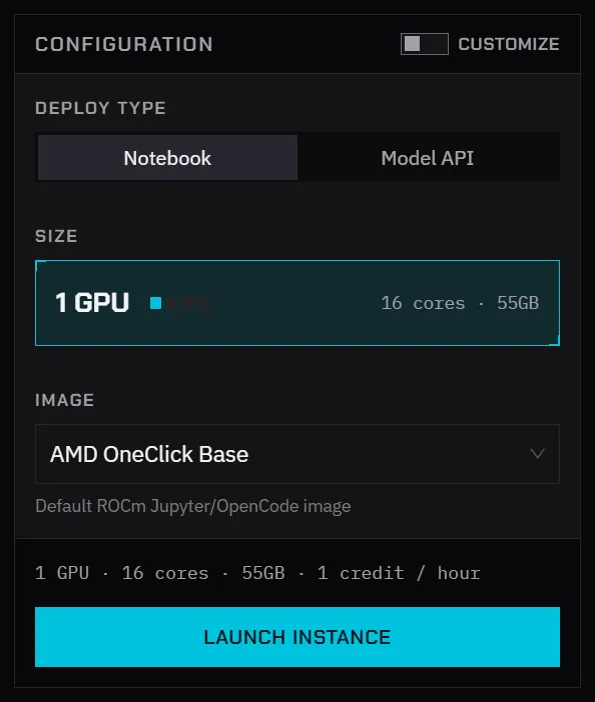
With Customize off, the form uses the smallest size available to your account, a temporary workspace, and no mounted model. The line above the button shows what you will get, for example 1 GPU · 16 cores · 55GB · 1 credit / hour.
Auto-reclaim shows how long the instance may run. It’s deleted automatically that long after it becomes ready, for example 7 days after ready, whether or not you’re using it. The time depends on the resource pool. Not enabled means there’s no time limit.
Customize the launch
Section titled “Customize the launch”Turn on Customize to choose the rest.
| Field | How to choose |
|---|---|
| Size | Pick the number of GPUs. If a GPU count comes in more than one memory size, a Memory row appears; each option shows its credits per hour. Choose the smallest size that fits your model. |
| Image | The default suits most work. |
| Resource pool | Most accounts have one pool. If yours has several and a launch fails for lack of capacity, try another. |
| Workspace storage | Temporary workspace (local storage) is fast and is deleted with the instance. Persistent /workspace keeps everything under /workspace for your next instance. Some accounts can also pick 25 GB or 100 GB. See Keep your data. |
| Mount a model | Mounts a prepared model read-only, so you don’t have to download it. Most models appear at /models; see Mounted models. Leave it at None if you don’t need one. |
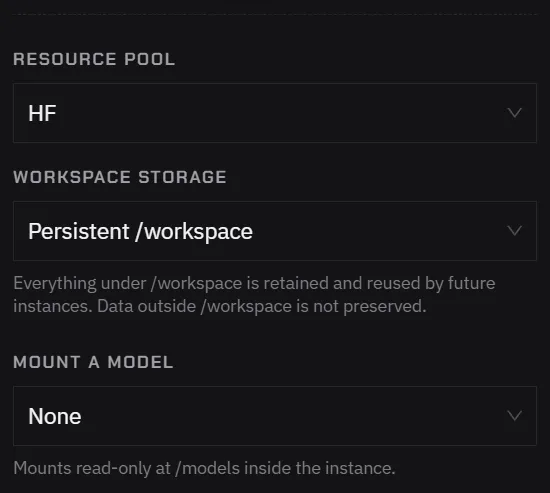
Settings can’t be changed on a running instance. To change storage or size, destroy the instance and launch again.
To serve a model instead, set Deploy type to Model API. See Serve a model.
Follow the launch
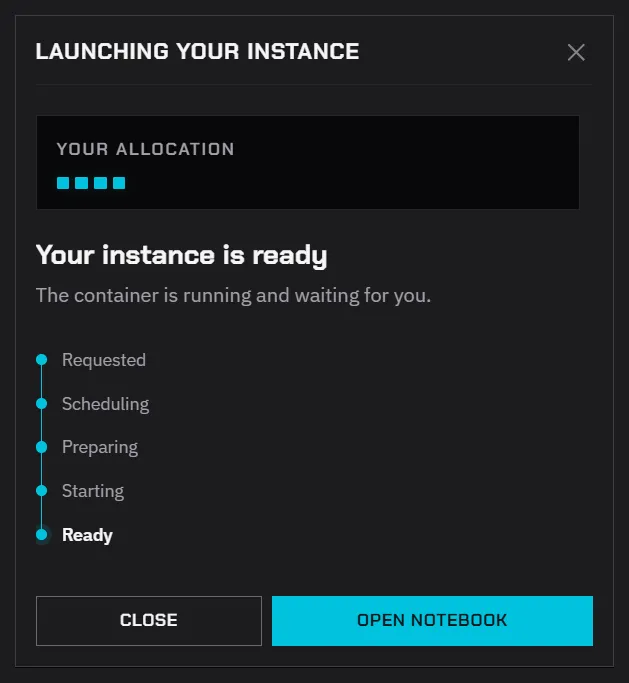
Section titled “Follow the launch”After you click Launch instance, the Launching your instance dialog moves through Requested, Scheduling, Preparing, Starting and Ready. If the resource pool has an auto-reclaim time, the dialog also says when the instance will be reclaimed.
- View logs shows scheduling events and the container’s output. Before a node is assigned and the image is pulled, the output stays empty.
- Continue in background closes the dialog. The launch keeps going, and Home shows the instance when it is ready.
- Cancel launch stops the launch.
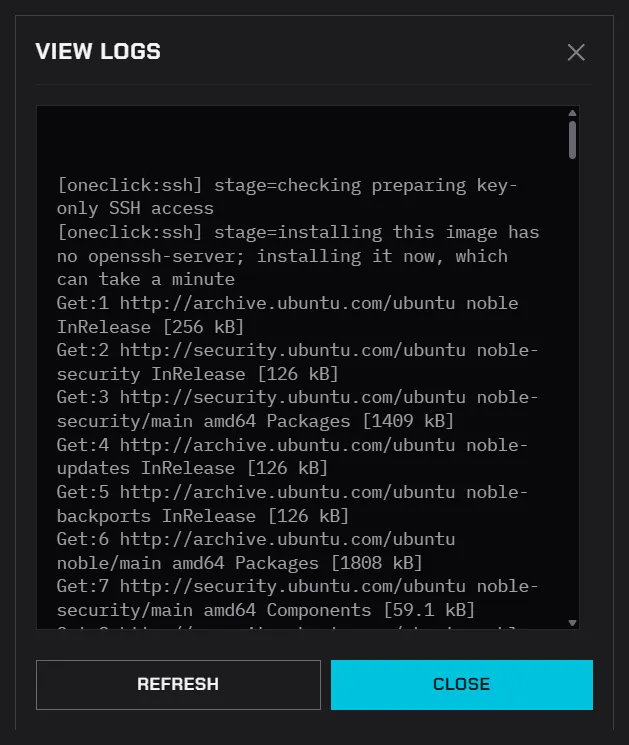
When a node is free, the instance is usually ready in under a minute. The first launch of an image on a node takes longer, because the node has to download the image.
When it’s ready
Section titled “When it’s ready”The dialog reads Your instance is ready. Click Open notebook to open JupyterLab in a new tab.
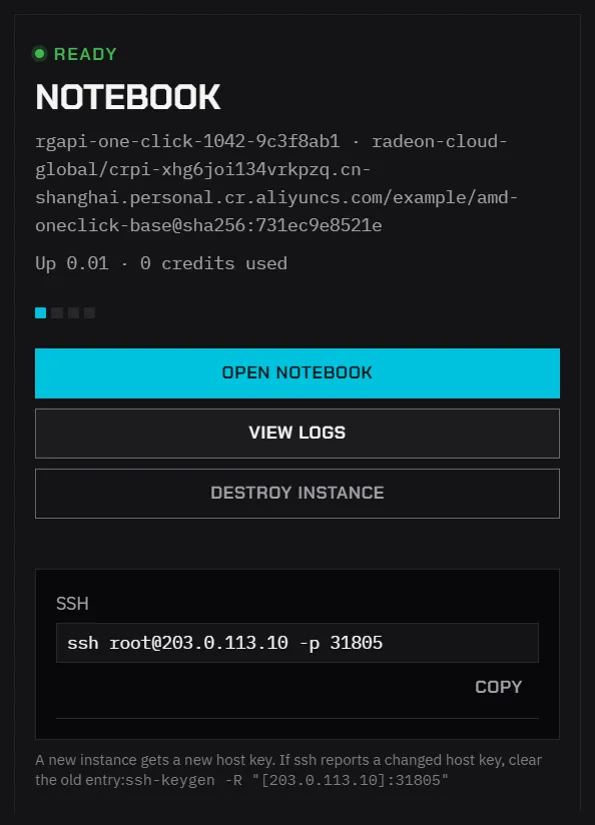
Home now shows the instance card:
- Open notebook opens JupyterLab.
- View logs shows the startup events and container output.
- Destroy instance deletes the instance. See Destroy an instance.
- The card shows the image, how long the instance has been up and the credits it has used.
- The SSH command appears once SSH is ready. See Connect over SSH.
If the launch fails
Section titled “If the launch fails”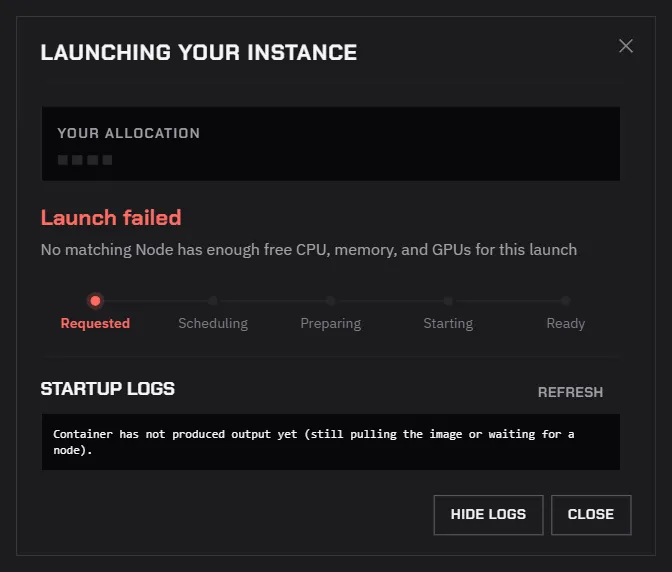
| Message | What it means | What to do |
|---|---|---|
| No matching Node has enough free CPU, memory, and GPUs for this launch | Every node in the selected resource pool is busy. | Turn on Customize and pick another Resource pool if you have one, or choose a smaller size, or try again later. If your account has only one pool and this keeps happening, email member-service@mail.developer.amd.com.cn. |
| Waiting for a free GPU | No node has room yet. The launch is still queued. | Keep waiting, or cancel and choose a smaller size or another pool. |
| Image pull failed | The node could not download the image. | Try again. If it fails again, pick another image and report the image name to support. |
| You already have an instance running. | Your account already has an instance. | Destroy it first. |
| Resource catalog is unavailable. Try again. | The console could not load the sizes and pools for your account. | Refresh the page. |
A failed launch does not create an instance and does not spend credits.
For more cases, see Troubleshooting.
Launch from a terminal
Section titled “Launch from a terminal”rcc instance create launches the same instances from the command line. See Manage GPU instances.