

Sign in
The China site and the Global site have separate accounts and different sign-in methods. Use the one for your region.
China site
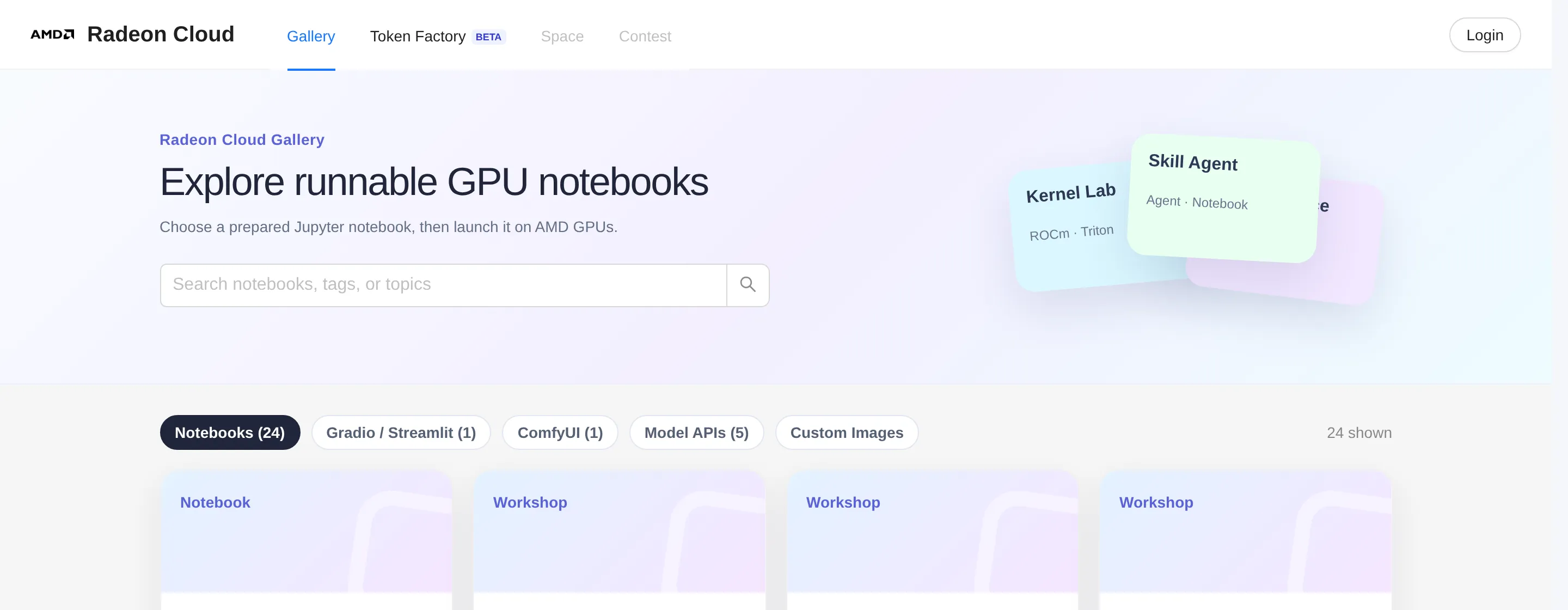
Section titled “China site”The China site uses your AMD AI Developer Program account. You can sign in at developer.amd.com.cn, or click Login with AMDAI in the top-right corner of developer.amd.com.cn/radeon. The classic interface, which new visitors may see first, labels the same button Login. Either way, you end up on the same program login page.
The login page has two tabs:
- 验证码登录 / Verification Code Login: enter your mobile number or email, click 发送验证码 / Send Code, and type in the code. You may need to pass a slider captcha first. After a code is sent, the button counts down before you can request another.
- 密码登录 / Password Login: for accounts that already have a password.
Below the form, you can also sign in with a ModelScope (魔搭), CSDN, or GitHub account.
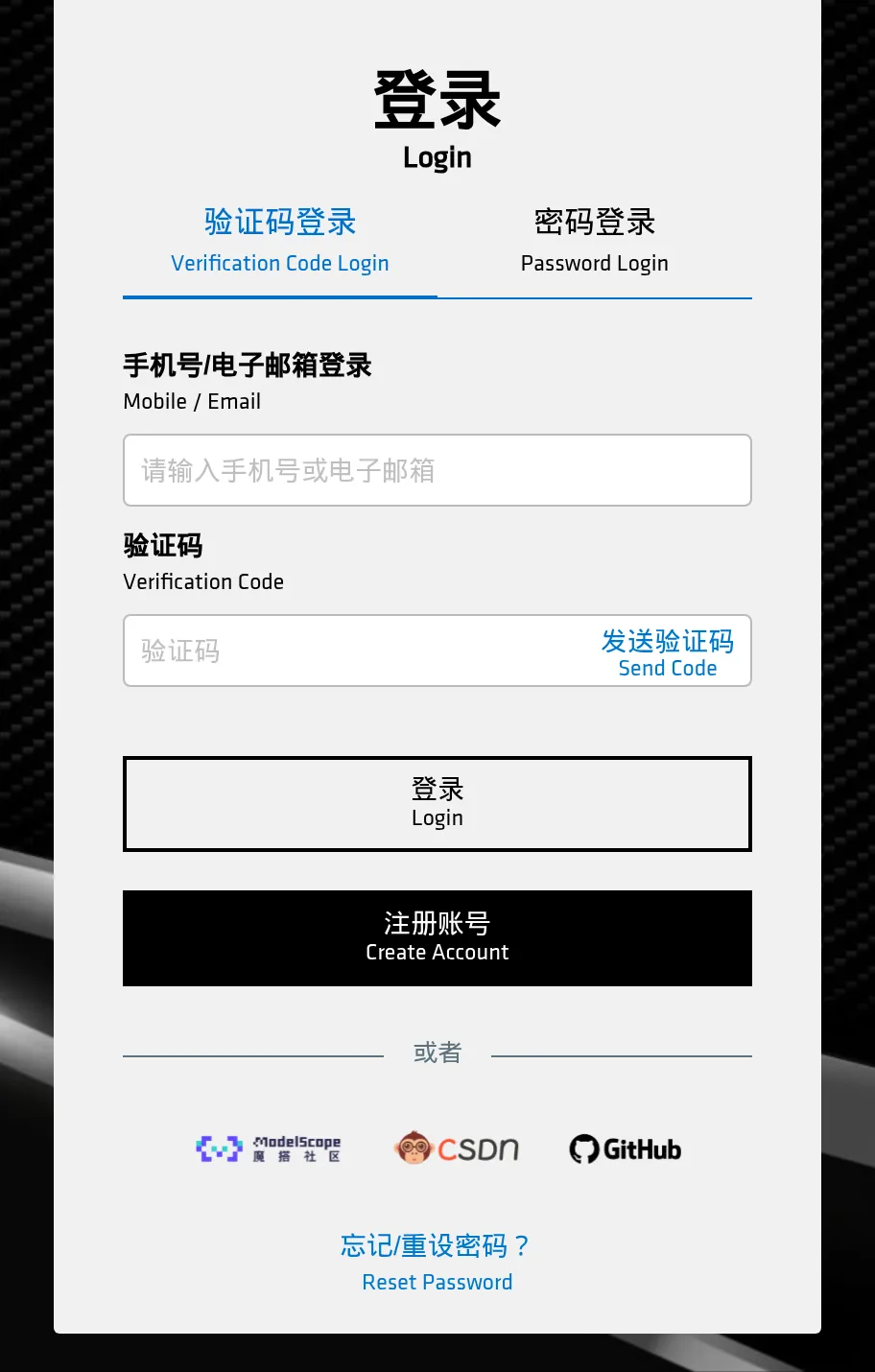
If you don’t have an account yet, click 注册账号 / Create Account on the login page, or 免费注册 on the program home page.
Once you’re signed in to the program, you’re signed in to the China site too. Your name shows in the top-right corner of the console. The same account holds the developer points that you exchange for credits.
Global site
Section titled “Global site”Open radeon-global.anruicloud.com, click Sign in in the top-right corner, and choose Login with Email. To use a GitHub account instead, choose Login with GitHub. In the classic interface, the button reads Login.
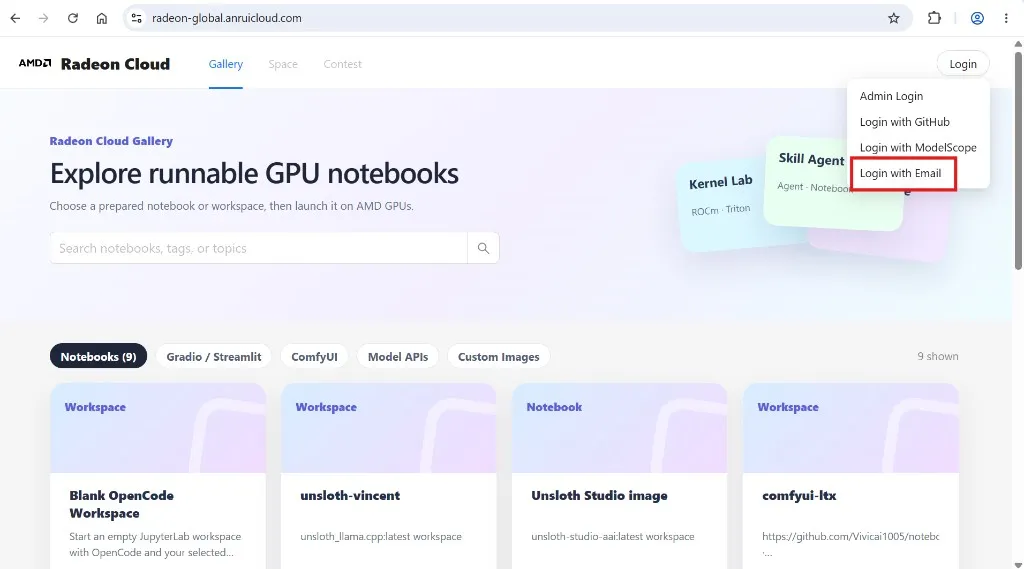
- Enter your email address and click Send code.
- Enter the six-digit code sent to you and click Verify & sign in.
Codes expire after a few minutes. If one doesn’t arrive, wait until Resend code is available and request another.
After signing in
Section titled “After signing in”The console opens on Home, where you launch instances. The tabs at the top lead to Gallery and Token Factory.
Click your account in the top-right corner for:
- your credit balance
- Credits & Usage: credits, redeeming coupons, Token Factory usage. See Credits.
- Settings: SSH keys, language, appearance, the AMDAI account link and the switch to the classic interface
- Sign out
The header also has buttons for the language (EN / 中) and the light or dark theme.
If your console has a Profile page instead, you’re on the classic interface. See Classic interface.
If your account needs review
Section titled “If your account needs review”Some new accounts are reviewed before they can be used. Until the review is done, signing in shows a review page instead of the console, you can’t launch instances, and you don’t get an API key. Everything unlocks once the account is approved.
If the review takes longer than expected, email member-service@mail.developer.amd.com.cn with your account email.